Set up AvaTax Excise
This article explains how to connect the Excise, Tariffs & Duties Tax Manager app to AvaTax Excise, test the connection, and set up the default transaction settings used during checkout and order adjustments.
Before you start, make sure you have AvaTax Excise credentials from Avalara and the company ID for the AvaTax Excise company you want to use.
Once you're ready, you can download the MyIntegrator app from the BigCommerce App Store.
Configure the Avalara settings
- In BigCommerce, open Apps.
- Select Excise, Tariffs & Duties Tax Manager.
- In the app sidebar, open Avalara.
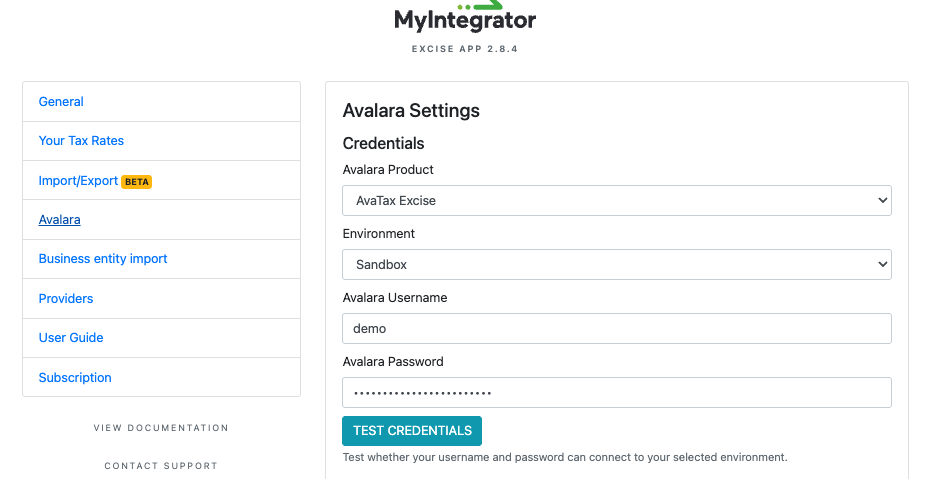
The Avalara page contains the settings that control the connection between it and your BigCommerce store. To use AvaTax Excise, the Avalara Product field must be set to AvaTax Excise:
- In Avalara Product, select AvaTax Excise.
- In Environment, select the Avalara environment you want to connect to:
- Sandbox for testing.
- Live for production.
- In the Credentials section, enter:
| Field | Description |
|---|---|
| Avalara Username | Your AvaTax Excise username. |
| Avalara Password | Your AvaTax Excise password. |
| Environment | Sandbox or Live AvaTax Excise environment. |

Enter company details
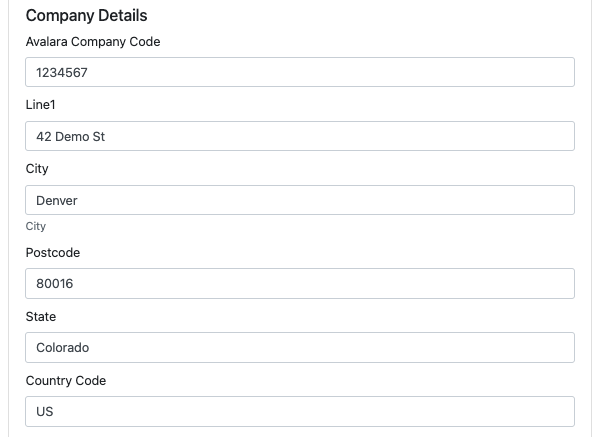
The app sends the AvaTax Excise company ID with each Excise request. In the Company Details section, enter the company mapping and origin address used for Excise calculations.
At minimum, complete:
| Field | Description |
|---|---|
| Avalara Company Code | The AvaTax Excise company ID provided by Avalara. |
| Address line 1 | Origin street address. |
| City | Origin city. |
| State / region | Origin state or jurisdiction. |
| Postal code | Origin ZIP or postal code. |
| Country | Origin country code, such as US. |
The origin address is used on AvaTax Excise transaction lines. Make sure it matches the location Avalara expects for your tax calculation scenario.
Test the connection
After saving credentials and company details:
- Click TEST CREDENTIALS.
- Wait for the confirmation message that says "Credentials Validated Successfully".
If the credentials are valid, the app shows a success message. If the test fails, check:
- The selected environment matches your Avalara account.
- The username and password are correct.
- The company code is present.
- The AvaTax Excise account is active.
Add BigCommerce fields
The app can create BigCommerce customer and product fields used by AvaTax Excise. These allow you to better customise and control the tax calculations performed by the app.
On the Avalara page, click ADD FIELDS.
This creates optional fields such as:
| Field | Used for |
|---|---|
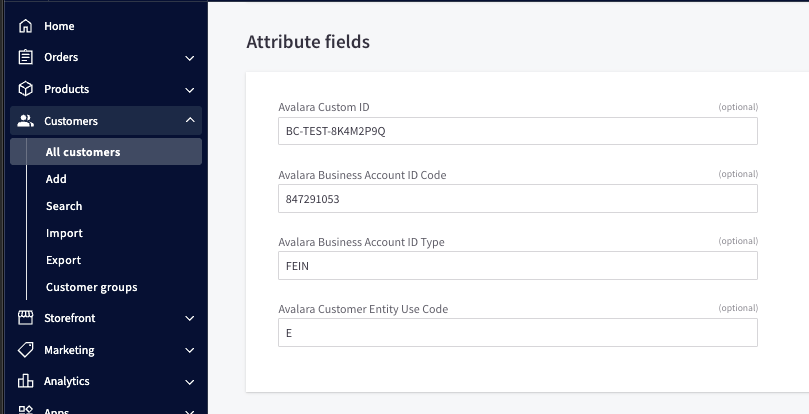
| Customer: Avalara Custom ID | Identifies the customer or business entity in AvaTax Excise. |
| Customer: Avalara Business Account ID Code | Business account ID code used for Excise entity records. |
| Customer: Business Account ID Type | Type of business account ID. |
| Customer: Avalara Entity Use Code | Optional sales/use exemption code for this customer's transactions. |
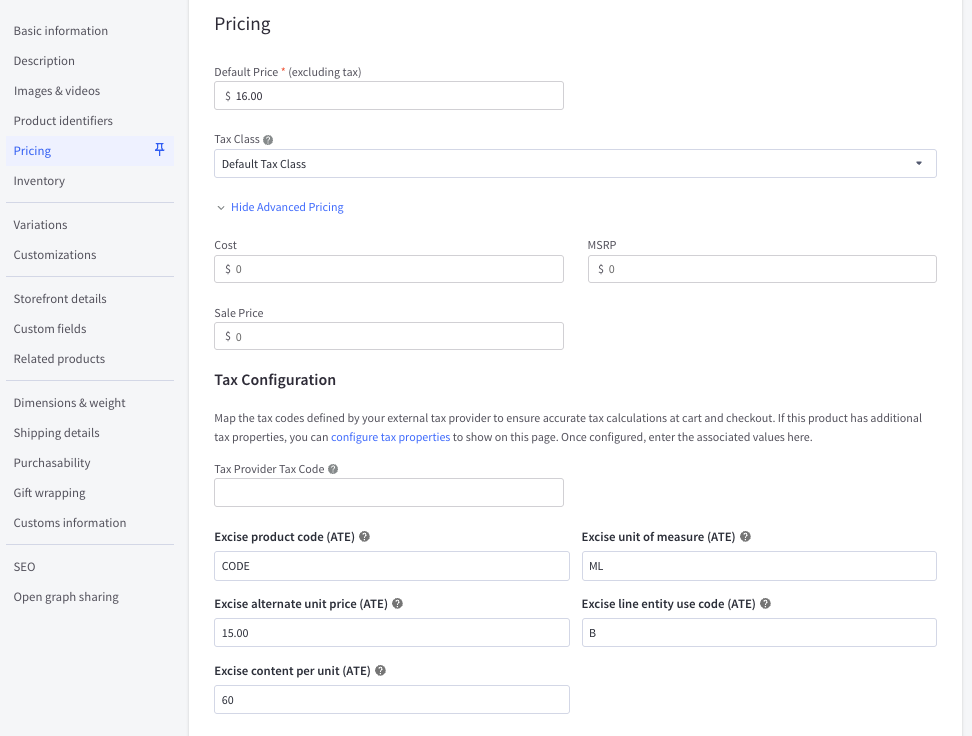
| Product: Avalara Product Code | AvaTax Excise product code override. |
| Product: Avalara Unit of Measure | Unit of measure sent to AvaTax Excise. |
| Product: Content per Unit | Use to map your BigCommerce units of measure to your AvaTax units. |
| Product: Avalara Alternate Unit Price | Alternate unit price used in Excise calculations. |
| Product: Avalara Entity Use Code | Optional line-level entity use code. |
These fields help map BigCommerce customers and products to AvaTax Excise data. Your Avalara implementation team can confirm which values are required for your tobacco, nicotine, or vape products.
Product Tax Properties, Under Pricing->Advanced
Customer Properties, under Customer->Custom Fields
Configure default Excise transaction settings
When Avalara Product is set to AvaTax Excise, the app uses additional settings to build AvaTax Excise transactions.
Complete the settings that apply to your store:
| Setting | Description |
|---|---|
| Transaction type | Where the transaction occurs in the supply chain. For tobacco, nicotine, and vape, common values are WHOLESALE, RETAIL, and DIRECT. |
| Title transfer code | Whether title transfer occurs at origin or destination. |
| Seller ID | Seller business entity ID in AvaTax Excise. |
| Buyer ID | Default buyer business entity ID. Customer-specific values can override this when configured. |
| Unit of measure | Default unit of measure for transaction lines, such as EA, PK, or GLL, depending on your Avalara setup. |
| Source system | Text value identifying the system sending transactions to Avalara. |
| Enable shipping | Determines whether shipping should be sent as a taxable freight line when applicable. |
Save the page after updating these values.
Configure checkout business entity sync
The app can create or update a minimal AvaTax Excise business entity during checkout tax calculation when a logged-in customer has the required Avalara fields.
Use Upsert customer business entity during checkout tax requests to control this behavior:
| Option | Behavior |
|---|---|
| Enabled | The app may send a customer business entity record to AvaTax Excise during checkout when the customer has the required Avalara fields. |
| Disabled | Checkout does not send business entity upsert requests. Use the Business Entity Import screen instead. |
If your business entities and licenses are managed directly in AvaTax Excise, you may prefer to disable checkout upsert and use the app only to pass the correct buyer ID on transactions.
Configure adjustment defaults
The app includes an order extension for AvaTax Excise transaction actions. These settings provide the default values used when submitting an adjustment from a BigCommerce order.
| Setting | Description |
|---|---|
| Adjustment reason | Reason code sent to AvaTax Excise. |
| Adjustment description | Description sent with the adjustment. AvaTax Excise allows up to 256 characters. |
Merchants can review and update adjustment details from the order extension before submitting.
Save and reload the app
After completing the setup:
- Click Save.
- Reload the app from the BigCommerce control panel.
Enable the app in BigCommerce Settings
Finally, navigate to your BigCommerce store's Settings->Tax section, and then 'enable' the Excise Tax provider:
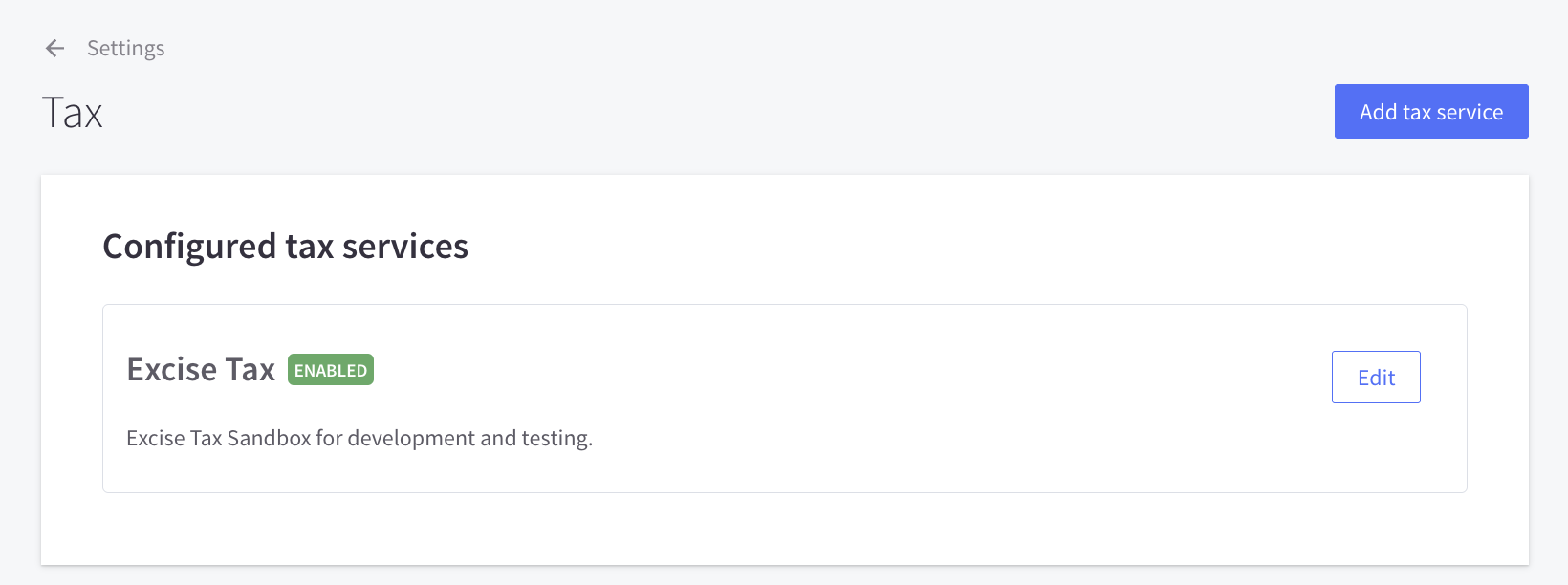
This section also provides a 'Test Connection' button to validate BigCommerce's communication with the app:
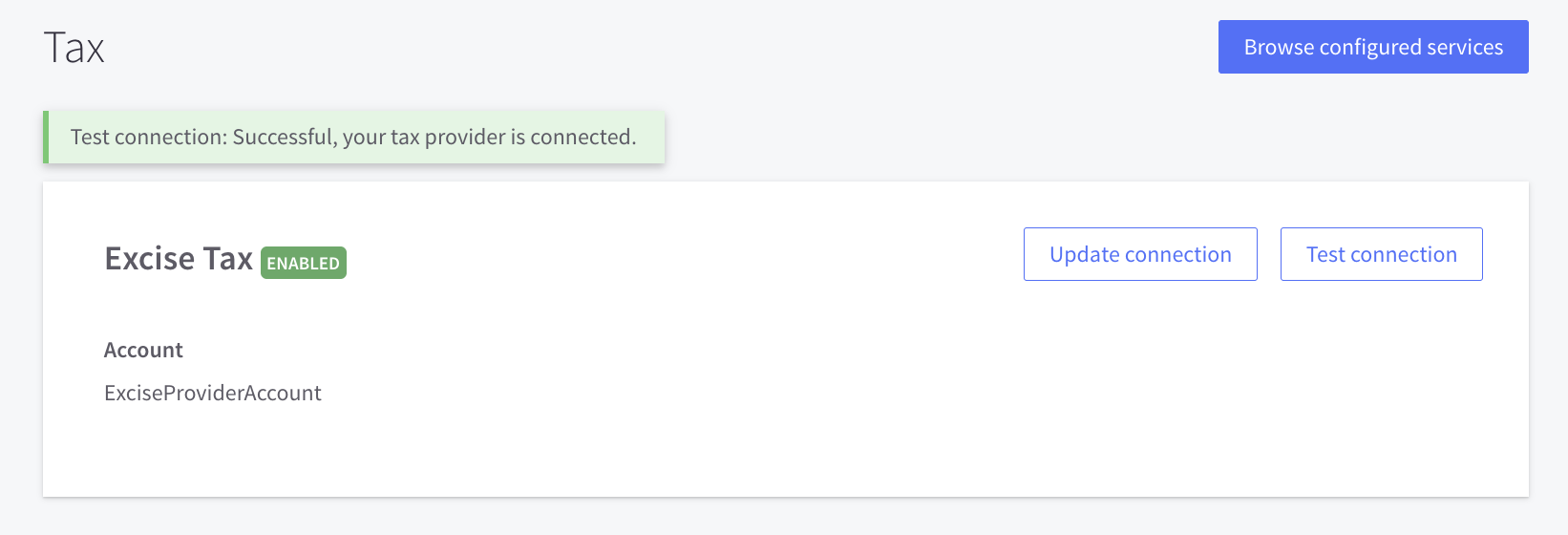
Once this is successful, the app will attempt to serve tax rates to your customers!
Next steps
After AvaTax Excise is connected, continue with:
- Tobacco, nicotine, and vape transaction fields to configure product, customer, and tax property values used on checkout transactions.
- Business entity import to create or update AvaTax Excise business entities.
- Order adjustments, commit, and void to manage AvaTax Excise transactions after an order is placed.
Handling Errors
If you wish to diagnose an issue, tax communication logs are available in your BigCommerce store's Settings->Store Logs section:
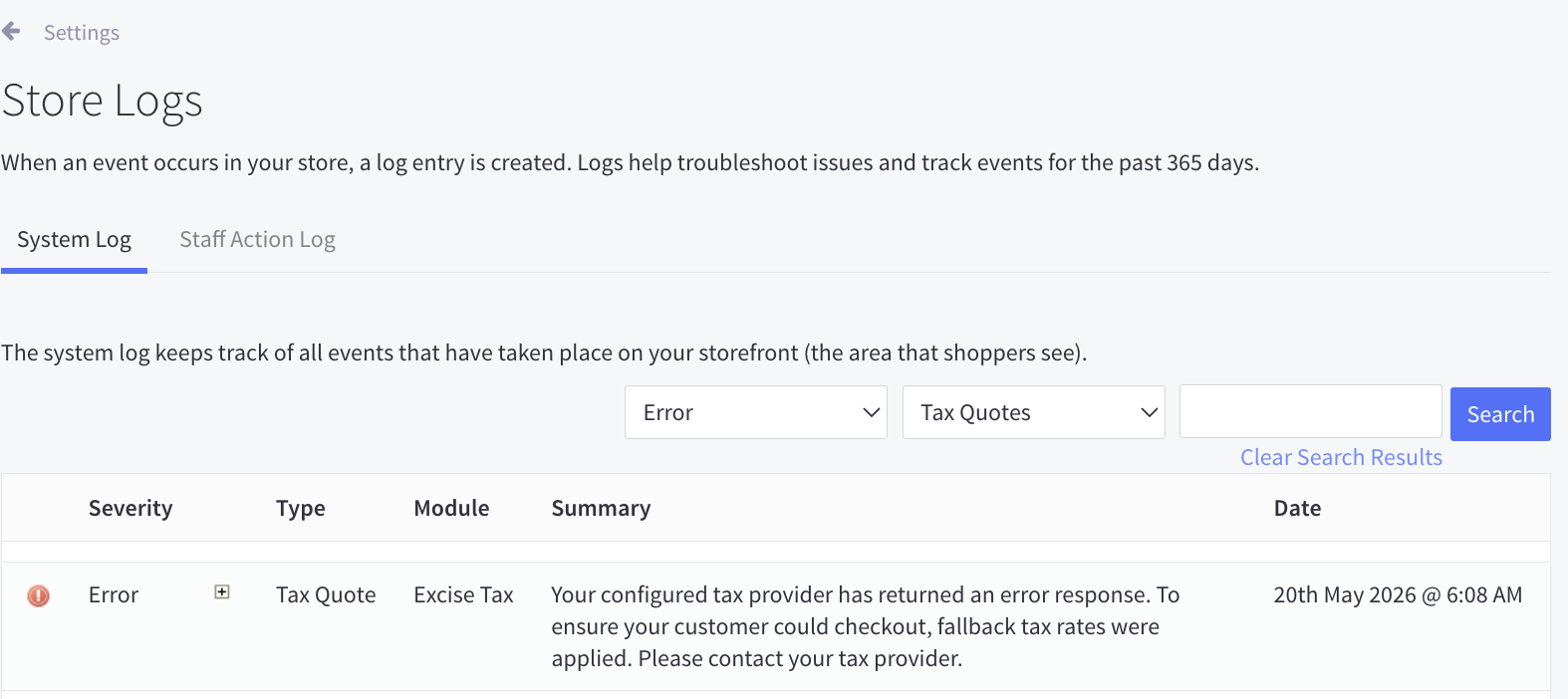
These error messages can help you determine if any issues are affecting your tax calculations.
Troubleshooting
| Problem | What to check |
|---|---|
| Test credentials fails | Confirm username, password, environment, and AvaTax Excise account status. |
| Excise routes or screens are unavailable | Confirm Avalara Product is saved as AvaTax Excise, then reload the app. |
| AvaTax Excise requests fail with company errors | Confirm the company code is entered in Company Details. |
| Buyer is missing on transactions | Confirm seller/buyer defaults or customer Avalara Custom ID values are configured. |
| Product code or unit of measure is wrong | Confirm product custom fields or BigCommerce tax properties are populated. |
| Business entity is not synced during checkout | Confirm checkout upsert is enabled and the customer has Avalara Custom ID, Business Account ID Type, and Avalara Business Account ID Code. |