Manage AvaTax Excise orders
This app's order tools let you commit, void or send adjustments to AvaTax transactions you've created via the app.
Complete Set up AvaTax Excise and Configure AvaTax Excise transaction fields before using this guide. The order must already have an AvaTax Excise transaction created from checkout tax calculation.
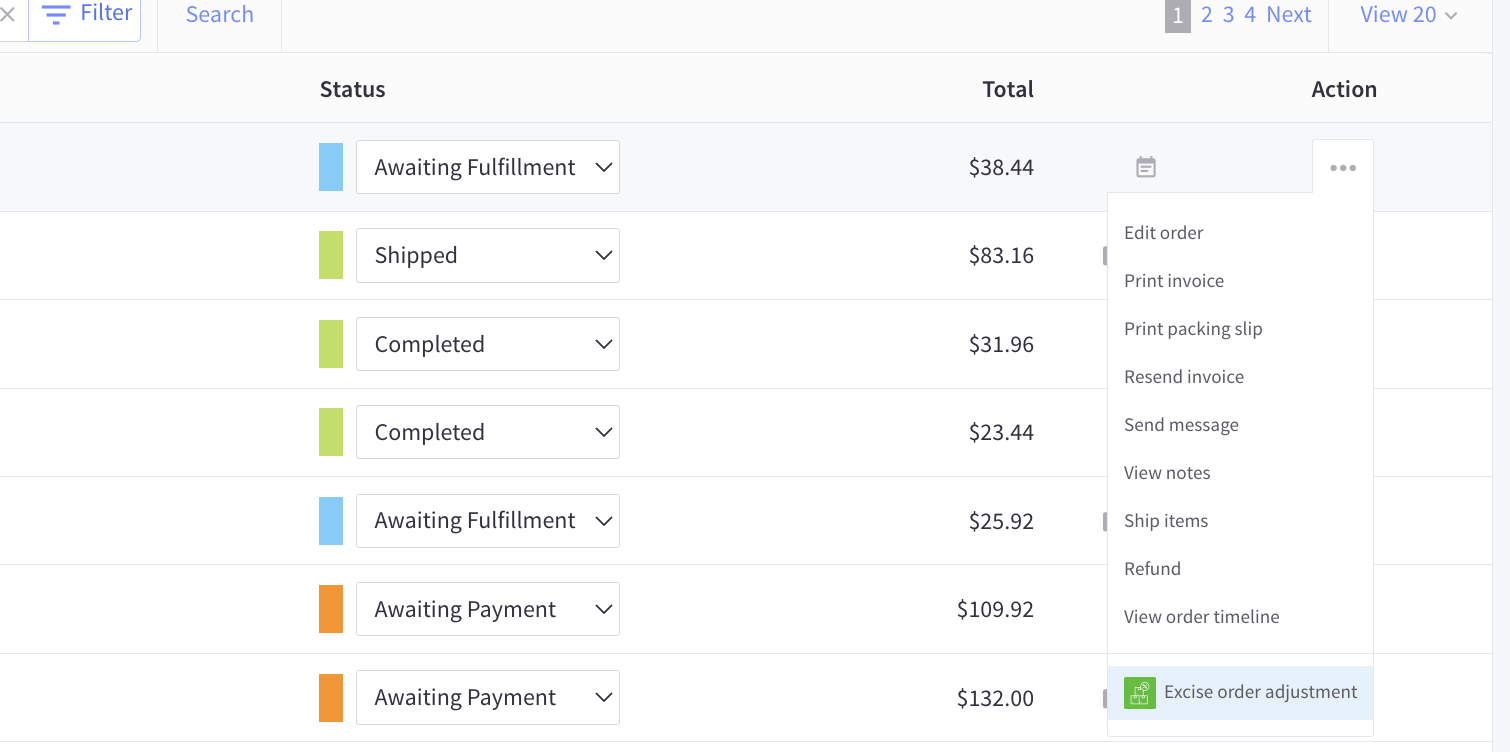
Open the Excise order extension
- In BigCommerce, open Orders.
- Select the order you want to review.
- Open the Excise adjustments panel or app extension.
The panel shows read-only order details from BigCommerce and editable AvaTax Excise fields used to send an adjustment. Note that the panel uses data from the BigCommerce checkout, and may not reflect any later changes made in the Avalara Excise Platform.
Confirm the transaction code
The Transaction code (ATE) is the AvaTax Excise transaction ID linked to the BigCommerce order. The app reads this value from the order’s tax data created during checkout.
Commit, void, and adjustment actions all apply to the transaction with this transaction code.
If the transaction code is present, the order is ready for AvaTax Excise actions. If the transaction code is missing, the panel shows an adjustment unavailable message.
When no transaction code is found
If the panel says Adjustment unavailable, the app could not find an AvaTax Excise transaction ID on the BigCommerce order.
Check the following:
| Check | What to confirm |
|---|---|
| AvaTax Excise was enabled at checkout | The store was configured with Avalara Product = AvaTax Excise when the order was placed. |
| Tax calculation ran during checkout | The checkout received an AvaTax Excise tax result. |
| Product was taxable | The order included taxable tobacco, nicotine, vape, or Excise products. |
| Order tax data contains the transaction ID | The transaction ID was saved to the BigCommerce order tax data. |
| Credentials and company code are valid | AvaTax Excise requests were accepted during checkout. |
If the order was placed before AvaTax Excise was configured, create a new test order after setup and check the panel again.
Commit a transaction
Use Commit when the AvaTax Excise transaction should be finalized for Avalara processing and reporting.
- Open the order extension.
- Confirm the Transaction code (ATE) is present.
- Click Commit.
Commit usually cannot be undone from the order extension. Confirm your Avalara workflow before committing production transactions.
Void a transaction
Use Void when the AvaTax Excise transaction should no longer be included in Avalara processing.
- Open the order extension.
- Confirm the Transaction code (ATE) is present.
- Click Void.
Void usually cannot be undone from the order extension. Confirm that the transaction should be voided before continuing. Once a transaction is voided, it cannot be edited further.
Submit an adjustment
Use Submit adjustment when you need to send a replacement AvaTax Excise transaction for an existing order transaction.
- Open the order extension.
- Confirm the Transaction code (ATE) is present.
- Review the BigCommerce order (read-only) section.
- Review or update the fields in Avalara overrides (editable).
- Review tobacco, nicotine, and vape document and line values.
- Click Submit adjustment.
- Review the response shown in the panel.
The app sends an AvaTax Excise CreateOrAdjust request with:
- The existing transaction code linked from the order.
- An adjustment reason.
- An adjustment description.
- A replacement transaction built from the BigCommerce order and editable override fields.
[Screenshot needed: Avalara overrides section showing Adjustment reason and Adjustment description.]
[Screenshot needed: Submit adjustment button before submission.]
[Screenshot needed: Successful adjustment response in the Last response panel.]
Adjustment reason and description
Each adjustment cam include a reason and description.
| Field | Description |
|---|---|
| Adjustment reason | AvaTax Excise reason code for the adjustment. |
| Adjustment description | Short description of the adjustment. Maximum 256 characters. |
If you are not sure which reason to use, confirm with your Avalara implementation team.
Seller, buyer, transaction type, and title transfer overrides
The order extension starts with the default values from Avalara settings. You can override them for the adjustment before submitting.
| Field | Description |
|---|---|
| Seller override | Seller business entity ID sent to AvaTax Excise. |
| Buyer override | Buyer business entity ID sent to AvaTax Excise. |
| Transaction type override | Transaction type, such as WHOLESALE, RETAIL, or DIRECT. |
| Title transfer code override | ORIG or DEST. |
These changes apply only to the adjustment being submitted from this order screen. They do not update the store’s default Avalara settings.
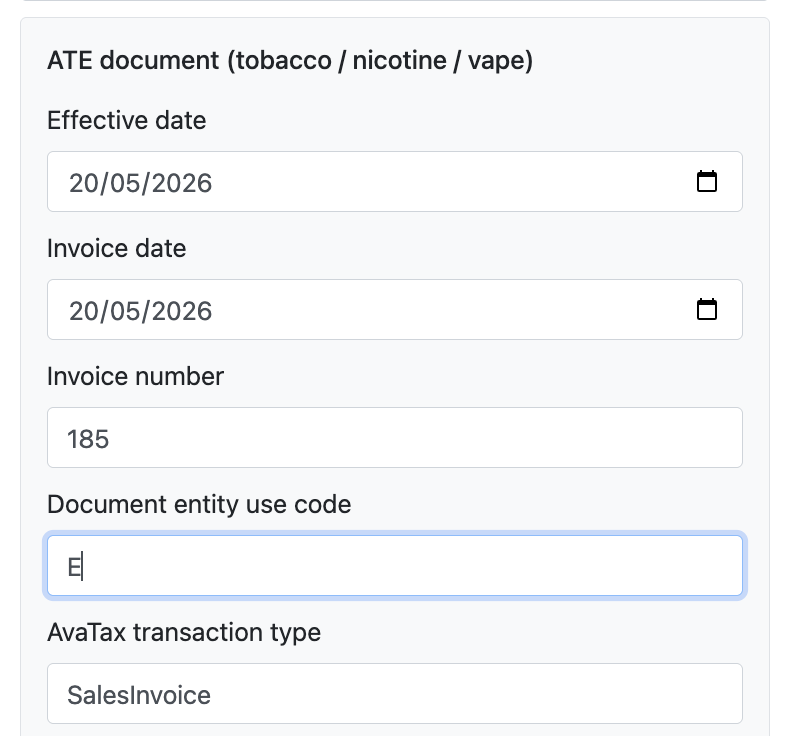
Document fields
This section controls document-level values on the replacement transaction.
| Field | Description |
|---|---|
| Effective date | Date AvaTax Excise should use for tax rate lookup. |
| Invoice date | Invoice date sent to AvaTax Excise. |
| Invoice number | Invoice number sent to AvaTax Excise. |
| Document entity use code | Optional document-level sales/use exemption code. |
| AvaTax transaction type | AvaTax transaction type, such as SalesInvoice. |
| Transaction code (ATE) | Existing linked transaction code from order taxes. Read-only. |
Use YYYY-MM-DD date values. The default starts with the BigCommerce order date when possible.
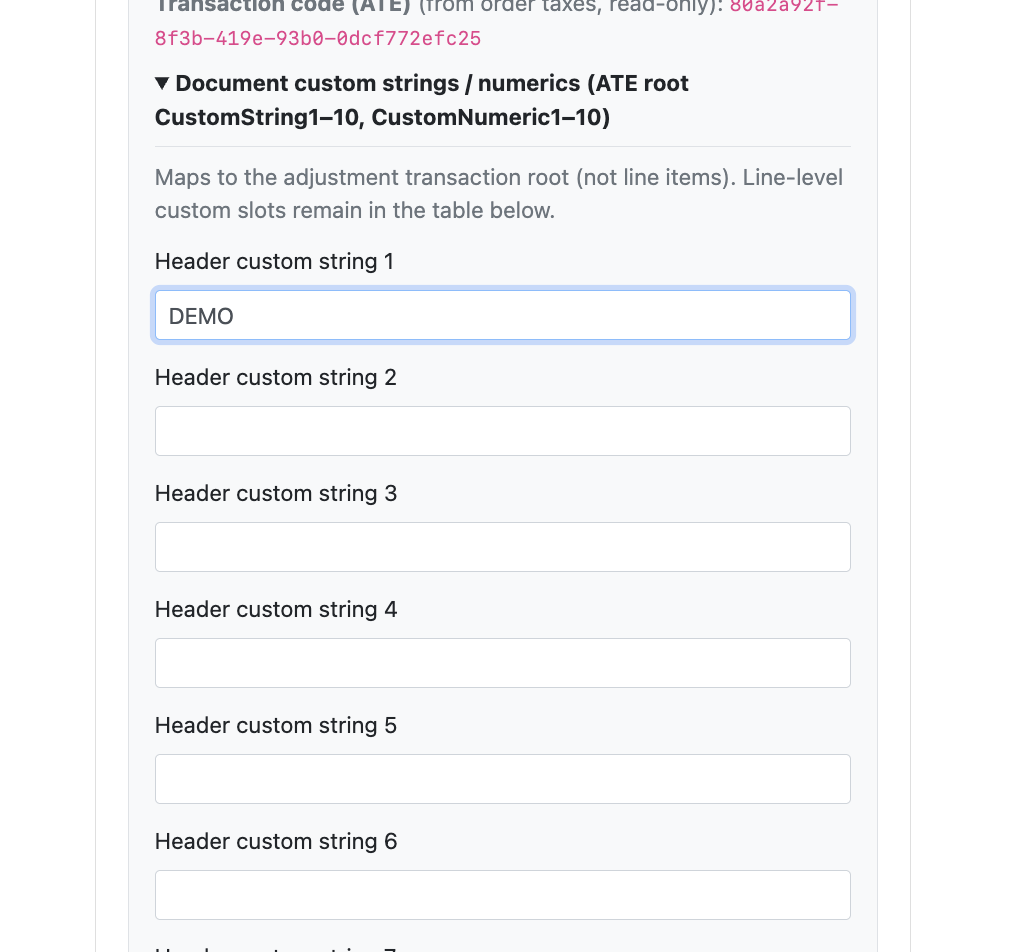
Document custom values
Open Document custom strings / numerics to send additional AvaTax Excise document values.
| Field group | Maps to |
|---|---|
| Header custom string 1-10 | AvaTax Excise root CustomString1 through CustomString10. |
| Header custom numeric 1-10 | AvaTax Excise root CustomNumeric1 through CustomNumeric10. |
Use these fields only when Avalara has instructed you to send additional document-level values for your tax scenario.
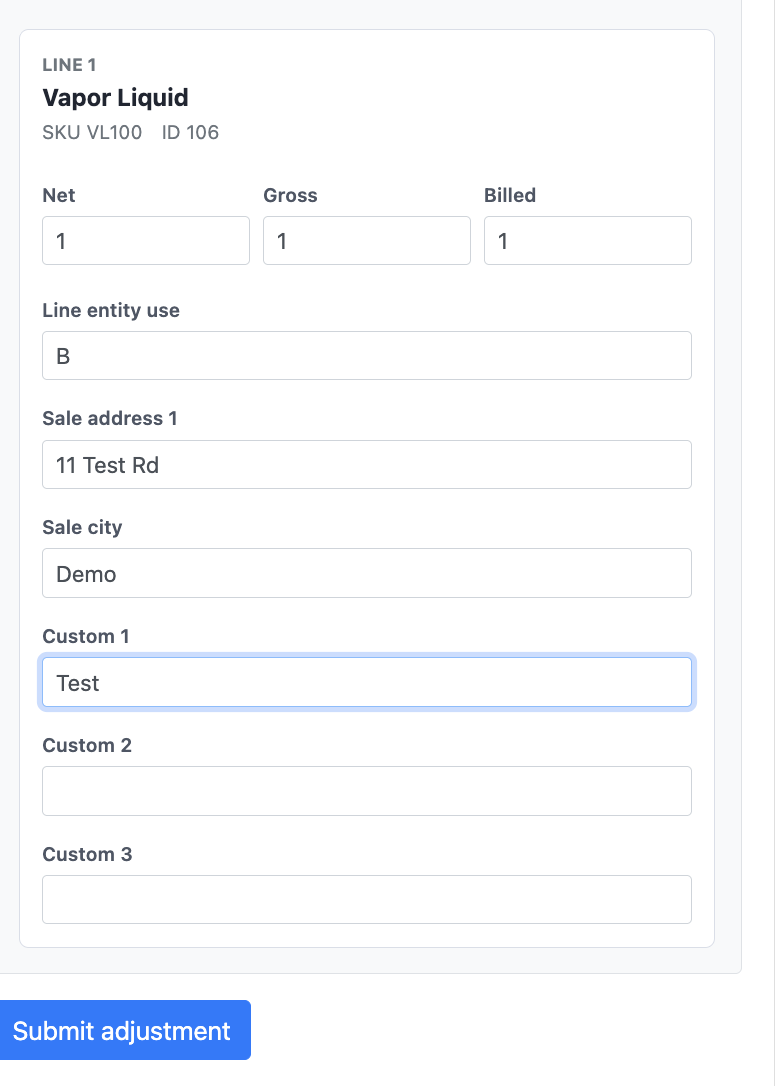
Line fields
The line table lets you review and edit product-level values for the replacement transaction.
| Field | Description |
|---|---|
| Product | BigCommerce product name, SKU, and line ID. |
| Net units | Net quantity sent to AvaTax Excise. |
| Gross units | Gross quantity sent to AvaTax Excise. |
| Billed units | Billed quantity sent to AvaTax Excise. |
| Line entity use | Optional line-level entity use code. |
| Sale addr 1 | Sale address line 1. |
| Sale city | Sale city. |
| Custom 1-3 | Additional line custom values shown in the table. |
For your products, confirm the correct units and product treatment before submitting an adjustment.
Read-only BigCommerce order data
The panel includes a BigCommerce order (read-only) section. These values come from BigCommerce and help you confirm that you are adjusting the correct order.
The read-only section may include:
- Order ID.
- Line count.
- AvaTax Excise transaction code.
- Transaction code source.
Changing editable Avalara fields cannot change the original BigCommerce order details.
Review the response
After commit, void, or adjustment, the panel shows Last response.
Use this response to confirm whether AvaTax Excise accepted the request. If Avalara returns an error, review the message and update the relevant order, customer, product, or AvaTax Excise configuration before trying again.
Common issues
| Problem | What to check |
|---|---|
| Commit or Void is disabled | Confirm a transaction code exists on the order. |
| Adjustment unavailable | Confirm the order was created after AvaTax Excise checkout tax was configured. |
| Company mapping error | Confirm the Avalara company code and origin address are saved in Avalara settings. |
| Buyer or seller is wrong | Update the order override fields or the store defaults in Avalara settings. |
| Unit values are rejected | Confirm net, gross, and billed units match the product setup expected by Avalara. |
| Transaction type is rejected | Confirm the value is valid for your AvaTax Excise tobacco, nicotine, or vape scenario. |
| Date is rejected | Use YYYY-MM-DD format. |
| Adjustment succeeds but BigCommerce order is unchanged | Adjustment values are sent to Avalara only; they do not edit the BigCommerce order record. |